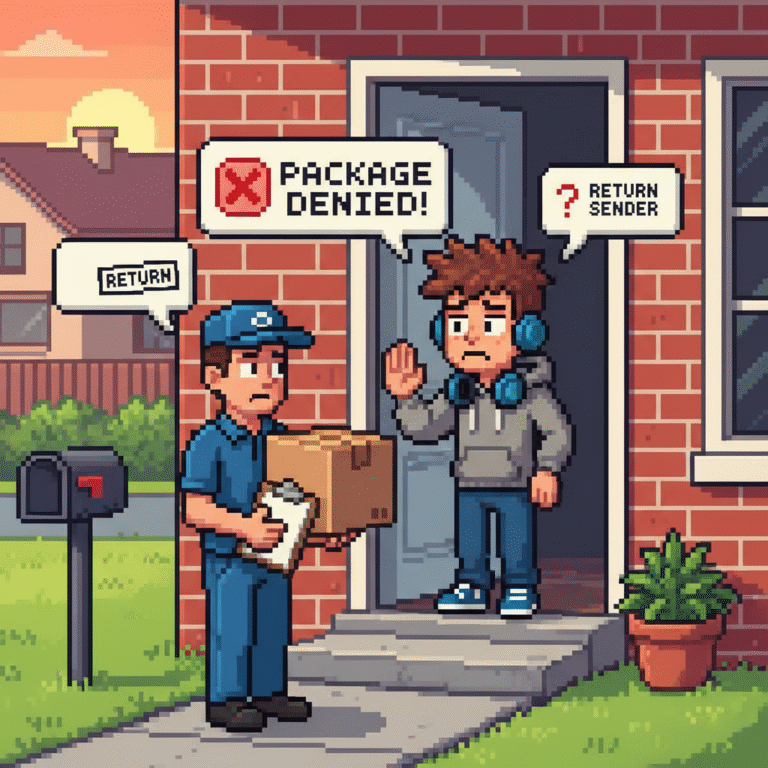
“EACCES: permission denied” When Installing NPM Packages

When working with Node.js, one of the most common errors developers face is the “EACCES: permission denied” message when installing npm packages. This issue usually appears when trying to install global npm packages or when file permissions are not set correctly in the system. Although frustrating, the problem is easy to solve once you understand why it happens and what steps to take.
In this article, we will break down the error, explain the root causes, and provide clear step-by-step solutions to fix it. Whether you are on Linux, macOS, or Windows Subsystem for Linux (WSL), the fixes are similar but may require some system-specific adjustments. By the end, you’ll have a working setup that avoids permission errors in npm.
What Does “EACCES: permission denied” Mean?
The error code EACCES stands for “Error Access,” which means the operating system is preventing you from accessing or modifying a file or directory. When npm tries to install a package, it writes files to specific directories, often inside system-level paths. If your user account does not have the right permissions, the system denies access.
For example, if you attempt to install a global npm package like npm install -g typescript, npm will try to write inside /usr/lib/node_modules/. On Linux and macOS, this directory requires elevated privileges. If you are not running the command with proper permissions, the “EACCES: permission denied” error appears.
This is not a bug with npm itself but a security feature of your operating system. It ensures that only authorized users can write to system directories, preventing accidental or malicious changes.
Common Situations Where the Error Appears
Most developers encounter this issue in a few typical scenarios. Recognizing these will help you quickly understand why the error appears.
First, the error often shows up when installing global packages without using sudo or without configuring npm properly. For instance, running npm install -g nodemon without permission adjustments will usually fail.
Second, it can appear when your npm or Node.js installation method was not set up correctly. If you installed Node.js through system package managers like apt or brew, the global directories may have restricted permissions.
Finally, the error can occur when using Docker, WSL, or shared environments where filesystem permissions are stricter than usual. In these cases, the solution requires adjusting mount options or using user-specific directories.
Why Using sudo Is Not Always the Best Solution
A common quick fix you’ll see online is running your npm command with sudo. For example, sudo npm install -g express. While this works, it is not considered best practice.
Using sudo gives npm root-level access to your system, which can lead to unexpected issues. Files may end up owned by the root user, preventing you from modifying or removing them later without using sudo again.
Additionally, it can create security risks. A malicious npm package could run scripts with root privileges, giving it complete access to your system. Therefore, while sudo solves the error in the short term, it creates bigger problems down the road.
Proper Ways to Fix the “EACCES: permission denied” Error
Instead of relying on sudo, there are safer and more reliable solutions. These methods ensure npm has the correct permissions without compromising security.
The most recommended approach is to configure npm to use a directory inside your home folder for global installations. This way, you have full control without touching system-level directories. Another option is to install Node.js via a version manager like nvm, which automatically manages permissions properly.
Let’s go through these solutions step by step.
Solution 1: Change npm’s Default Directory
The first solution is to reconfigure npm’s global installation directory to a path inside your user’s home folder. Here’s how you can do it:
- Create a directory for global installations:
mkdir "${HOME}/.npm-global" - Configure npm to use this directory:
npm config set prefix "${HOME}/.npm-global" - Update your system PATH so npm can find the global packages. Add this line to your
.bashrc,.zshrc, or equivalent shell config:export PATH=$HOME/.npm-global/bin:$PATH - Reload your shell:
source ~/.bashrc
After these steps, reinstall your global package. This time npm will install it inside ~/.npm-global, and you won’t see the permission error.
Solution 2: Use a Node Version Manager (Recommended)
Another excellent fix is to install Node.js using a version manager such as nvm (Node Version Manager). Version managers ensure that Node.js and npm are installed under your user account, avoiding system-level restrictions.
To install nvm, run the following:
curl -o- https://raw.githubusercontent.com/nvm-sh/nvm/v0.39.7/install.sh | bash
Then restart your terminal and install the latest Node.js version:
nvm install node
Now, npm will automatically work without permission issues because all installations stay within your user directory. Many developers prefer this method because it allows you to switch Node.js versions easily.
Solution 3: Fix Permissions of Existing npm Directories
If you already installed npm globally and now face errors, you may need to fix existing permissions. This can be done with the following command:
sudo chown -R $(whoami) ~/.npm
This ensures that your current user owns the npm cache and package directories. After this, retry your installation.
However, if system directories like /usr/lib/node_modules are affected, the better approach is to reinstall Node.js with nvm rather than forcefully changing ownership.
Solution 4: Use Docker or Containers
In some projects, especially in production, you might want to avoid installing global packages on your host machine altogether. Instead, you can use Docker containers.
By running Node.js inside Docker, all installations happen inside the container environment, isolated from your main system. This prevents permission conflicts and ensures your development environment matches production.
Although this approach requires additional setup, it provides clean separation and avoids messy permission issues.
Troubleshooting Other Related npm Errors
Sometimes, fixing permissions alone may not fully resolve your issue. Other related npm errors include:
- EACCES when clearing cache: Use
npm cache clean --forceafter fixing permissions. - EPERM errors on Windows: Run PowerShell or Command Prompt as Administrator or adjust directory permissions.
- File lock issues: Delete the
package-lock.jsonandnode_modulesfolder, then reinstall.
Understanding these related errors helps ensure your npm environment remains stable and error-free.
Best Practices to Prevent Future Permission Errors
Now that you’ve fixed the error, it’s important to adopt practices that prevent it from happening again. Here are some best practices:
- Always install Node.js using nvm or another version manager.
- Avoid using
sudowith npm commands. - Keep your npm and Node.js versions updated.
- Use project-local dependencies instead of global ones when possible.
- Consider Docker for isolated, reproducible environments.
Following these practices ensures you don’t run into permission issues in the future and keeps your workflow smooth.
Conclusion
The “EACCES: permission denied” error in npm can be frustrating, especially when it interrupts your workflow. Fortunately, the fix is straightforward once you understand what causes it.
By reconfiguring npm’s default directory, using a version manager like nvm, or fixing existing permissions, you can resolve the issue permanently. With these solutions in place, you’ll spend less time troubleshooting and more time building your applications.
Instead of relying on quick fixes like sudo, adopt the best practices outlined in this article. Doing so will ensure your development environment stays secure, stable, and free from permission errors.