VS Code Fix: Extensions Not Loading

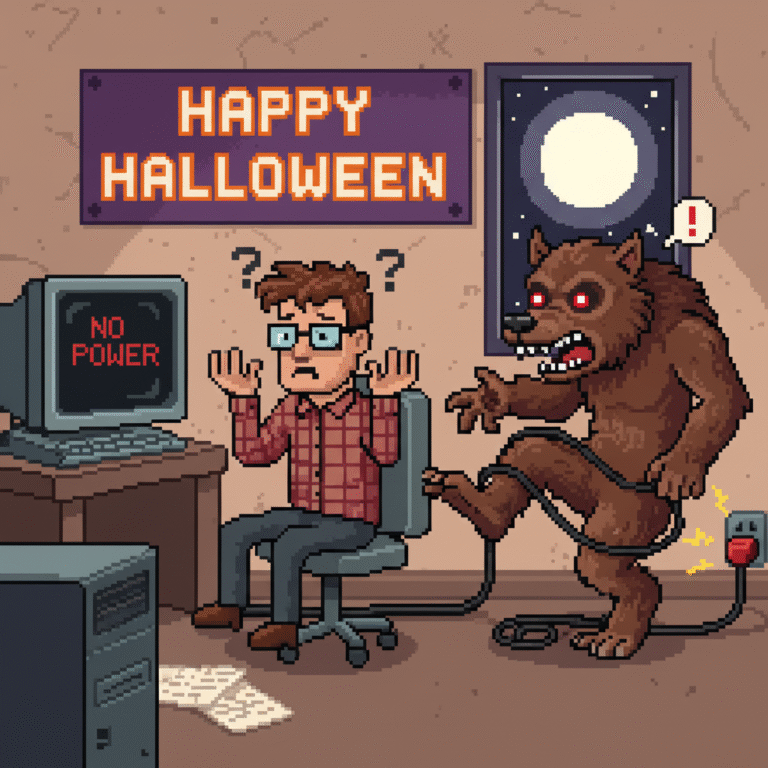
Visual Studio Code is one of the most popular code editors in the developer world. With its huge marketplace of extensions, programmers can customize their workspace for almost any language, framework, or workflow. But when VS Code extensions stop loading, it feels like a Halloween nightmare 👻.
The issue is more common than many expect, and it can appear suddenly without warning. You might open your editor only to find your beloved extensions missing or stuck on “loading.” Don’t panic—this haunting glitch has clear causes and proven solutions.
In this guide, we’ll explore why VS Code extensions might not load and how to fix it step by step. We’ll also share preventive tips so your setup stays healthy in the future. By the end, you’ll know how to exorcise these spooky bugs for good 🎃.
🕸️ Common Causes Behind Extensions Not Loading
Before fixing the problem, you need to understand what’s going wrong. Extensions may fail to load because of corrupted files, outdated VS Code versions, or network restrictions. Sometimes, the issue lies with the extension itself rather than your editor.
Another frequent cause is conflicts with other installed extensions. For example, two extensions trying to override the same setting can create unexpected behavior. This conflict often results in one or more of them failing to initialize.
You may also face issues if your computer’s cache or temporary files become bloated or corrupted. Just like cobwebs in an old house 👻, these hidden files can interfere with normal operations until they’re cleaned out.
🎃 Fix 1: Restart VS Code and Your System
It sounds simple, but the first step should always be a restart. Closing and reopening VS Code forces it to reload its extensions and configuration files. Often, this alone resolves minor glitches.
If restarting VS Code doesn’t help, try rebooting your computer. A fresh system start clears background processes and resets the environment that extensions rely on. This trick is surprisingly effective when the issue is caused by temporary interference.
Think of this step as sweeping away cobwebs 🕸️ before hunting for the real ghost. It’s a low-effort, high-reward first attempt.
👻 Fix 2: Update VS Code to the Latest Version
Extensions are built to match specific versions of VS Code. If you’re running an older version, you may experience compatibility issues. Updating ensures that both the editor and your extensions speak the same language.
To update, simply open the Help > Check for Updates menu in VS Code. On Linux and macOS, you can also update through your package manager if you installed it that way.
Keeping your editor updated is like sharpening your stake before facing vampires 🎃. It prevents unnecessary fights with outdated bugs.
🕸️ Fix 3: Check for Extension Conflicts
Sometimes extensions don’t play nicely with each other. If one is preventing the rest from loading, you’ll need to identify the culprit. The easiest way is to disable all extensions and then re-enable them one at a time.
You can do this by launching VS Code in Extension Bisect mode. This feature systematically disables and re-enables extensions to find the problematic one. It’s faster than manually testing them yourself.
This method works like a ghost hunt 👻—you eliminate suspects until the guilty spirit reveals itself.
🎃 Fix 4: Clear Extension Cache and Reinstall
Corrupted extension files are a very common reason for loading failures. Extensions are stored locally on your computer, and when these files break, VS Code struggles to launch them. Luckily, clearing the cache can fix this.
On Windows, the cache is typically found in %USERPROFILE%\.vscode\extensions. On macOS and Linux, it’s in ~/.vscode/extensions. Deleting the problematic folder and reinstalling the extension usually solves the issue.
It’s the digital equivalent of chasing skeletons out of your closet 🦴—sometimes you just need a clean slate.
👻 Fix 5: Run VS Code Without Extensions
If the issue is severe, you might want to run VS Code without extensions entirely. This allows you to test whether the base editor works correctly. If it does, you can be sure that an extension is behind the haunting.
To launch without extensions, open the command line and run:
code --disable-extensionsFrom there, carefully add extensions back one by one. This process may be slow, but it guarantees you’ll catch the ghost 👻 in your system.
🕸️ Fix 6: Network and Proxy Issues
Some extensions require an internet connection to download updates or resources. If your network is unstable or blocked by a firewall, the extensions may fail to load. This is especially true in corporate environments where proxies are common.
Check your internet connection first, then review VS Code’s proxy settings. You can configure them under File > Preferences > Settings > HTTP.
Think of your proxy like a haunted gatekeeper 👻—if it blocks the wrong thing, your extensions will remain trapped.
🎃 Fix 7: Reinstall VS Code
If none of the above fixes work, it’s time for the nuclear option: reinstalling VS Code. This wipes out any corrupted program files and gives you a fresh start. Make sure to back up your settings before doing this.
Uninstall VS Code completely, then download the latest version from the official website. After reinstalling, add your extensions back carefully.
It’s like rebuilding your haunted house 🕸️ from scratch—sometimes that’s the only way to clear out stubborn spirits.
👻 Preventing Extensions from Breaking in the Future
Prevention is always better than cure. Keep VS Code updated, regularly clean up unused extensions, and avoid installing too many at once. This reduces the chances of conflicts and corruption.
You should also back up your VS Code settings using the Settings Sync feature. That way, if something goes wrong, you can restore your preferred setup quickly.
Think of this as carving protective jack-o’-lanterns 🎃 around your coding environment—they ward off evil bugs before they arrive.
🕸️ When to Seek Help
Sometimes, no matter how much you try, the problem refuses to vanish. At this point, reaching out to the community can be a lifesaver. The VS Code GitHub Issues page is an excellent place to start.
You can also check developer forums like Stack Overflow, where others may have experienced the same problem. Chances are, someone has already found a solution that applies to your case.
Just remember that even the best monster hunters 👻 sometimes need a team to banish the toughest ghosts.
🎃 Conclusion
When your VS Code extensions stop loading, it may feel like a Halloween curse. But in reality, the problem is manageable once you know where to look. With the right combination of updates, resets, and cache cleanups, you’ll be back to coding in no time.
Remember the seven fixes: restart, update, check conflicts, clear cache, disable extensions, check networks, and reinstall if necessary. These steps cover nearly every cause of the issue.
So next time your extensions refuse to load, don’t be spooked 👻. Just follow this guide and send the bugs back to the shadows where they belong.